How to Add Song Lyrics to Your Live Stream
Have you ever wondered how to use a camera feed as a background in EasyWorship? With a few simple steps, you’ll be able to send your song lyrics to a live stream, an NDI device, or your projection screens.
1. Open EasyWorship
2. Go to the Songs tab
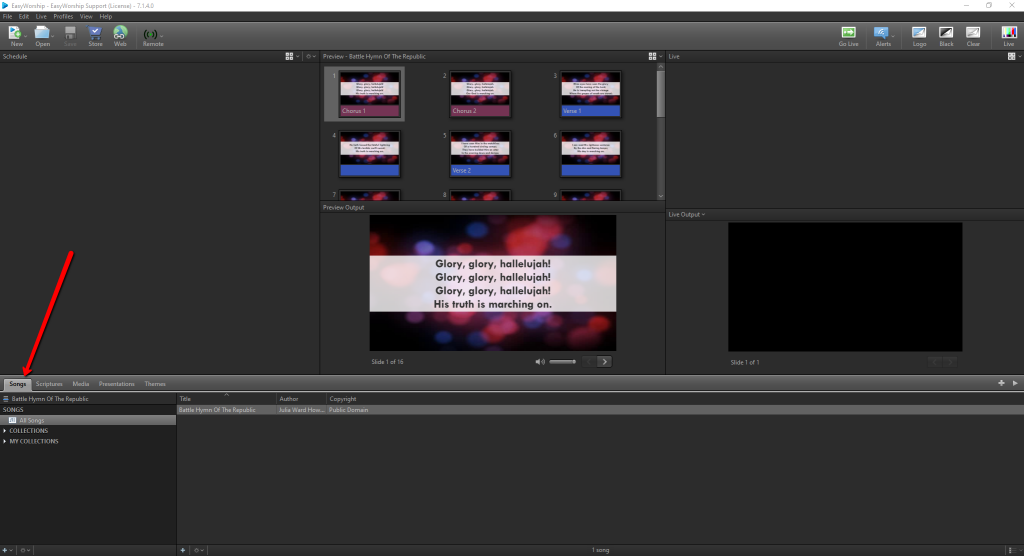
3. Locate the song that you want to use. I'm going to use Battle Hymn of the Republic for ease
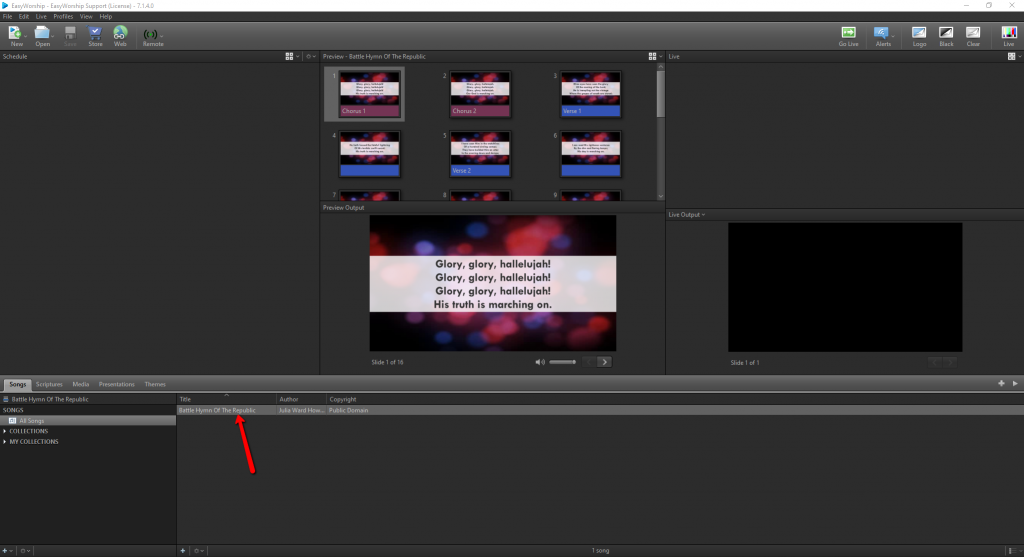
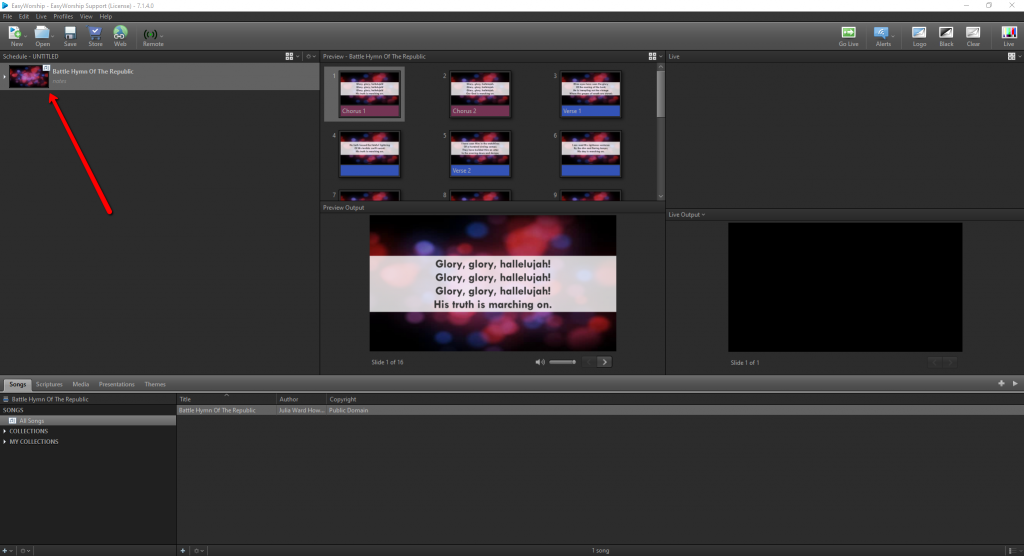
4. Drag your Song into the schedule
5. Go to the Media tab
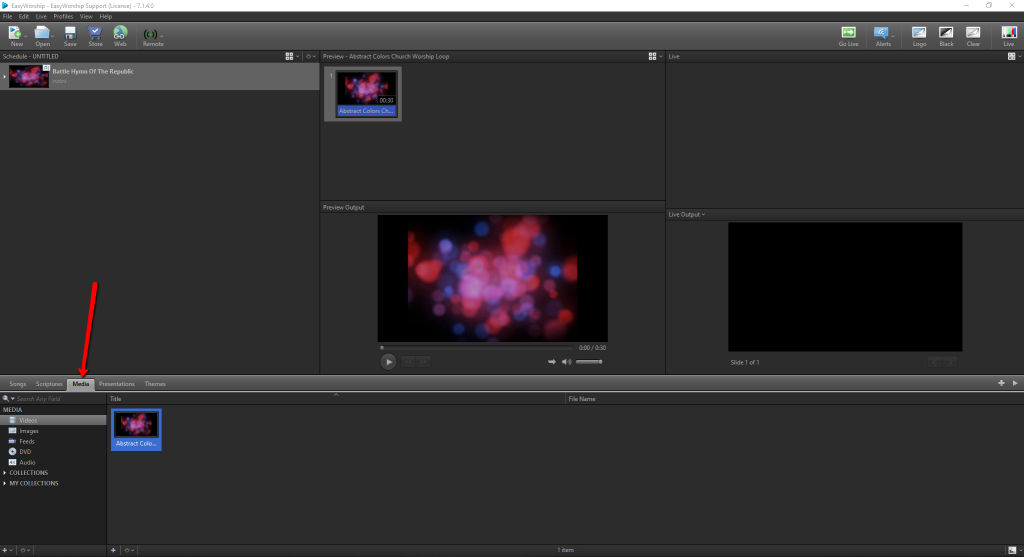
6. Choose the Feeds section from the menu on the left
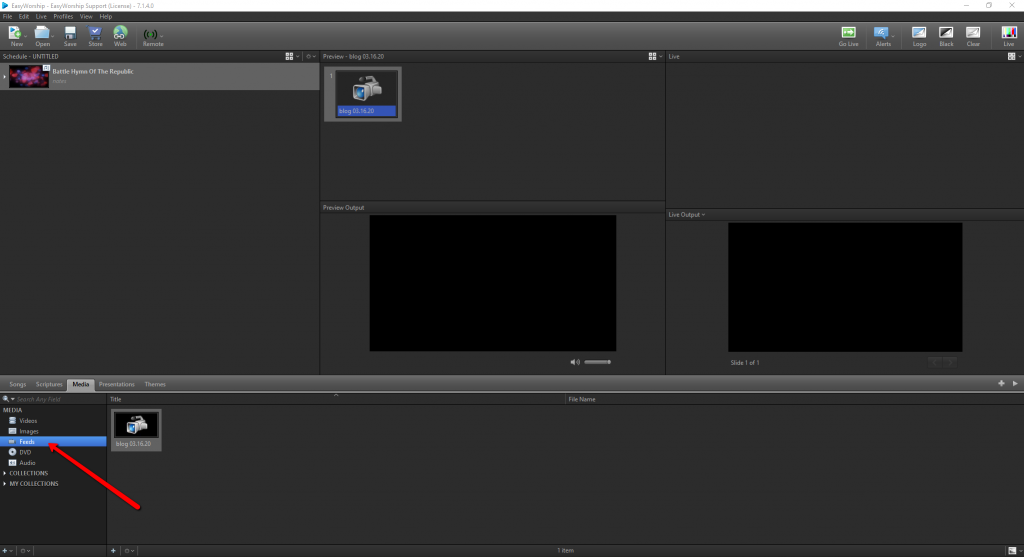
7. Locate the feed that you want to use
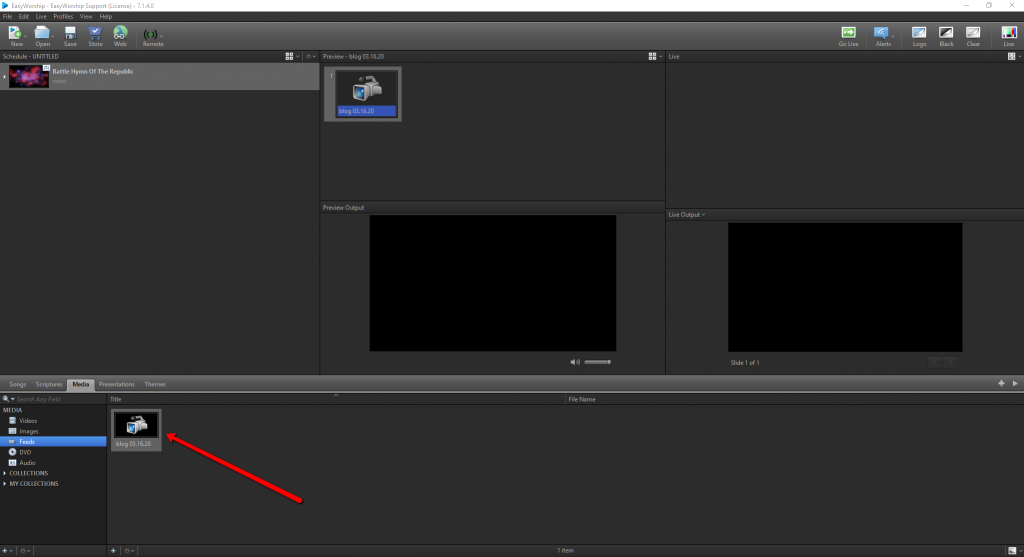
8. Drag the feed directly on top of your song in the schedule
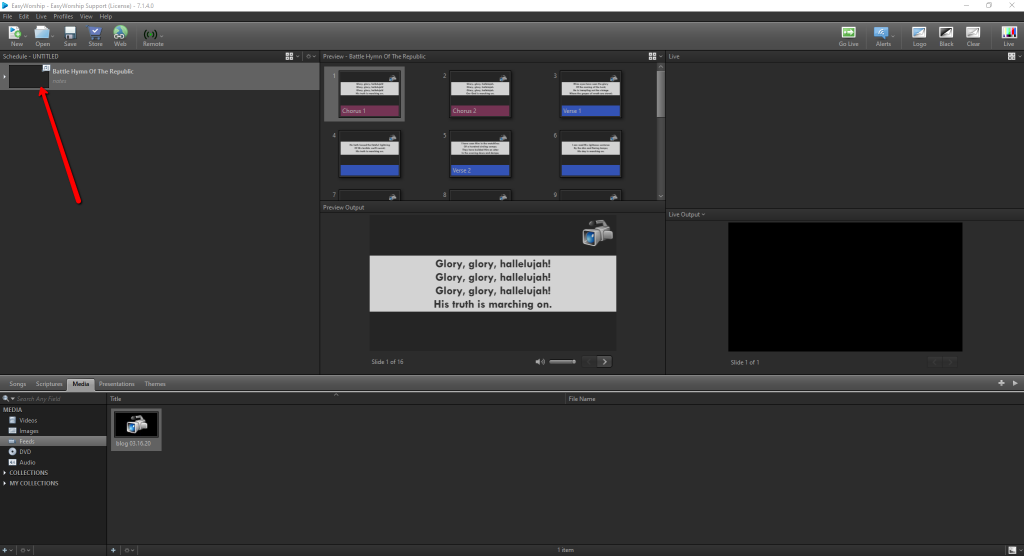
9. You should now have the camera feed set as the background on the song when you Go Live
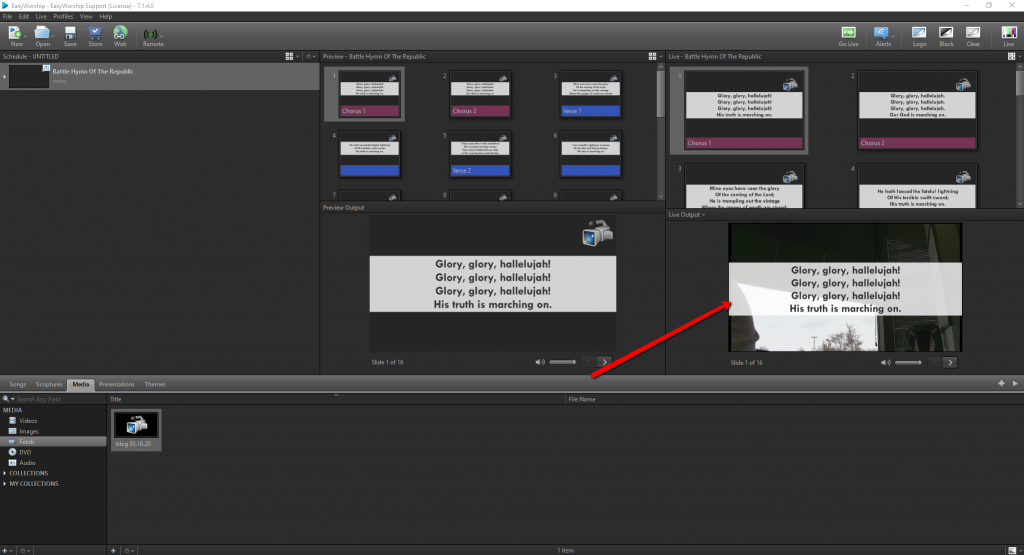
Note: Feel free to adjust your text box to be a lower third or adjust the color fill by right-clicking the song and selecting "Edit Song". You can open the Inspector and adjust font, shadow, color fill and more. To watch a tutorial on how to create lower thirds in EasyWorship, go here.
This process will be the same for a variety of applications including for a live stream, to send out an NDI stream, or for your regular projection needs. Once you’ve done that, you simply need to capture the output from EasyWorship with software like OBS or VMix. Personally, I prefer OBS as I think it’s easier to set up. If you’re wanting to use all of this from the same computer, you can either use NDI or OBS’ built-in display capture option. (OBS requires a patch be installed to support NDI in.)
If you have any questions, please feel free to email us at support@easyworship.com. Thank you!
If you would like to demo EasyWorship software, you can do so